Information

Computer Lab Reservation Policy

Resources for:
icon Close

Due to the increasing demand of the academic computer facilities, a general document detailing the policies for computer lab reservations has been outlined. The purpose of the computer lab reservation policy is to provide faculty, staff and students with equitable access to campus computing lab resources.

Most computer labs are used as classrooms, and they are available for open-access use when there are no classes in session.

Computing Services Instructional Labs

There are currently four Computing Services computer labs which can be used for classroom instruction on each campus.

Florham Campus (Dreyfuss Building):

  • D206
  • D207
  • D208
  • D209

Metropolitan Campus:

  • Dickinson Hall: DH2163, DH2164, DH2165
  • University Hall: UH Front Lab (UH22), UH Back Lab (UH28)

Multimedia Labs

There are three multimedia labs: two on the Florham Campus and one on the Metropolitan Campus.

Florham Campus:

  • D211 — Animation Lab (Dreyfuss Building)
  • ZEN110 — Graphic Design Lab (ZEN Building)

Metropolitan Campus:

  • Becton Hall Room 403 — Multimedia Lab (MML)

The multimedia labs are primarily used for courses offered by the FDU School of Arts.

Equipment

  • All labs used for classroom instruction and general use are equipped with a LaserJet printer and data projector.
  • The Animation Lab is equipped with 3D printers.
  • All multimedia labs are equipped with ZOOM capability to support hybrid instruction.

If you have any questions regarding the lab reservation policy, please contact Genesis Lopez at g.lopez@fdu.edu

Last Modified:

Computer Labs Hours

Resources for:
icon Close

Spring Semester 2025

Computing Services has multiple computer labs in our
New Jersey Campuses for classroom instruction and student use.

Florham Campus

Dreyfuss Building
RoomMonTueWedThurFriSatSun
Dreyfuss
Building
8AM-
11PM
8AM-
11PM
8AM-
11PM
8AM-
11PM
8AM-
5PM
10AM-
5PM
12PM-
9PM
Dreyfuss
212, 213
8AM-
11PM
8AM-
11PM
8AM-
11PM
8AM-
11PM
8AM-
5PM
10AM-
5PM
12PM-
9PM
Dreyfuss 21110PM-
1AM
10PM-
1AM
10PM-
1AM
10PM-
1AM
10PM-
1AM
12PM-
5PM
12PM-
5PM

Computer Labs

  • D206
  • D207
  • D208
  • D209

Laptop Work Stations
(Monitors Only)

  • D212
  • D213

Animation Lab

  • D211
close
Zen Building
RoomMonTueWedThurFriSatSun
Zen
110, 242
8AM-
8PM
8AM-
8PM
8AM-
8PM
8AM-
8PM
8AM-
8PM
10AM-
5PM
12PM-
5PM

Phone:

(973)-443-8689

close

Metropolitan Campus

Dickinson Hall – Hackensack
RoomMonTueWedThurFriSatSun
Dickinson
Hall
8AM-
11PM
8AM-
11PM
8AM-
11PM
8AM-
11PM
8AM-
5PM
CLOSEDCLOSED

Rooms:

  • Lab A (DH2163)
  • Lab B (DH2164)
  • Lab C (DH2165)

Phone:

(201)-692-7111

close
University Hall – Teaneck
RoomMonTueWedThurFriSatSun
University Hall8AM-
11PM
8AM-
11PM
8AM-
11PM
8AM-
11PM
8AM-
5PM
10AM-
6PM
2PM-
10PM

Rooms:

  • Front Lab (UH 22)
  • Back Lab (UH 28)

Phone:

(201)-692-7112

*Temporarily Closed

The UHall Side lab is currently closed to Students and Faculty for the fall semester for internal use.

Dickinson Hall Lab C is always available to students during lab hours.

close
Student Union Building – Teaneck

Rooms:

  • Multipurpose Room 135

Phone:

(201)-692-2222

Tip

The Student Union Building Multipurpose Room will be locked at all times. To gain access to the Student Union Building computer lab, you will need to contact Public Safety at (201)-692-2222.

close

Note

Computer Lab hours of operation are subject to change based on utilization throughout the semester. Lab computers are available on a first-come-first-serve basis unless reserved for classes. Class reservations are posted at the lab entrances.

Last Modified:

Computer Tips, Tricks, and Recommendations

Resources for:
icon Close

As technology evolves and new features are offered, there may be times when unwanted or unexpected things happen. This page is dedicated to providing some tips, tricks, and recommendations to circumvent these undesired circumstances.

Normalize Sound Levels – Windows

Microsoft Windows 10 automatically adjusts audio levels between different applications. This can affect the level of sounds from various applications depending on what program is currently being used. This feature can be turned off using the instructions below.

Instructions
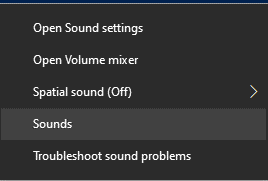
  1. From the Sound Icon in your task bar, single right-click
  1. Click “Sounds
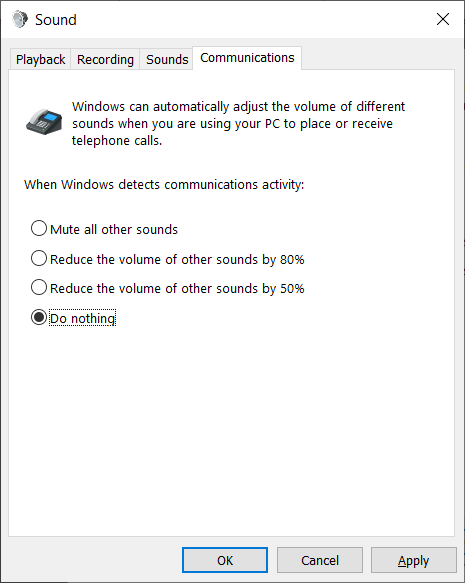
  1. Click “Communications” tab.
  1. Select the “Do nothing” radial button
  1. Click “Apply
  2. Click “OK
close

Adjust Microphone Settings – Windows

To ensure clear and audible audio in virtual meeting applications, such as Zoom, please follow the instructions below.

Instructions
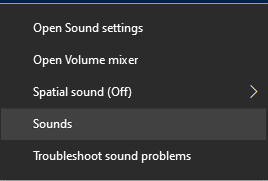
  1. Right-click the Audio icon in the system tray portion of the task bar
  1. Click “Sounds
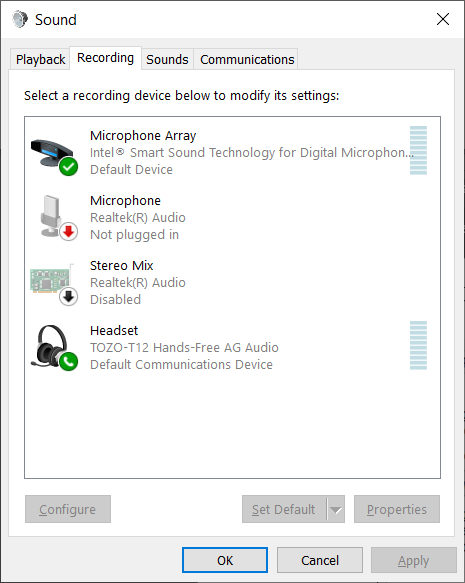
  1. Click “Recording

Note

Not all options may be visible.

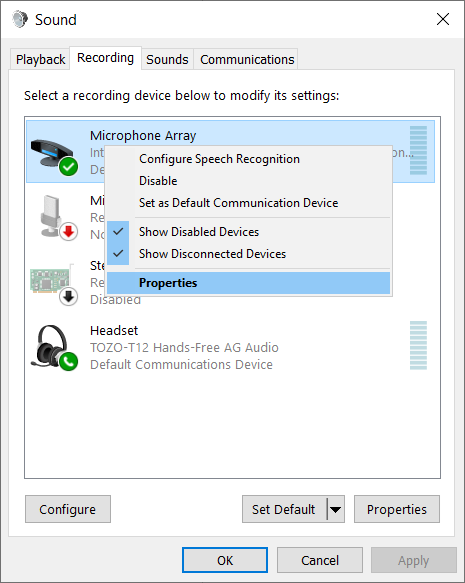
  1. Right Click on “Microphone Array” and select “Properties
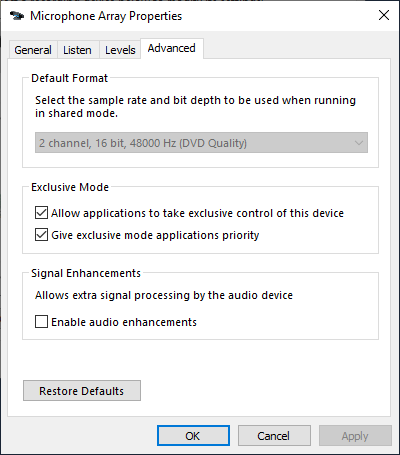
  1. Click the “Advanced” and un-check “Enable Audio Enhancements
  1. Click “Apply
  1. Click “OK
close

Adjust Power Options – Lenovo Laptops

Default power profiles in Windows 10 are configured to balance performance and battery life. To change these settings, please follow the steps below.

Instructions
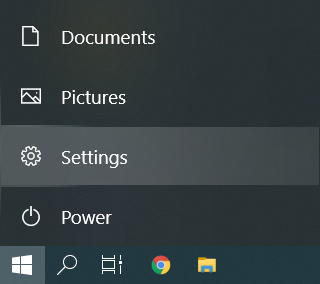
  1. Click on Start, and then click “Settings
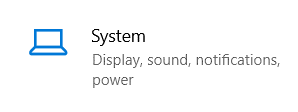
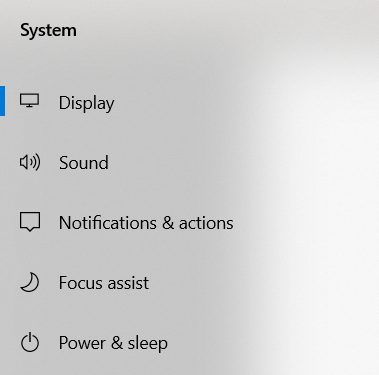
  1. Click on “System
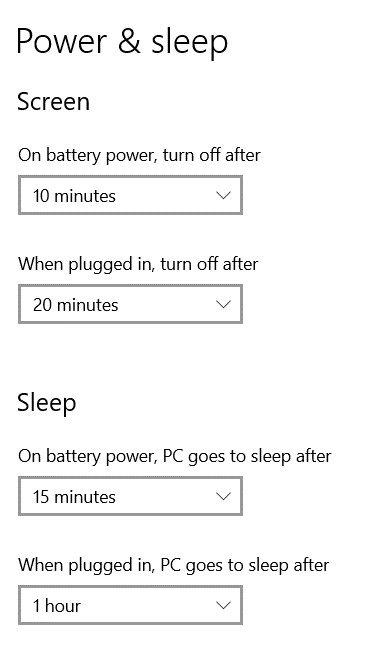
  1. Select “Power & Sleep
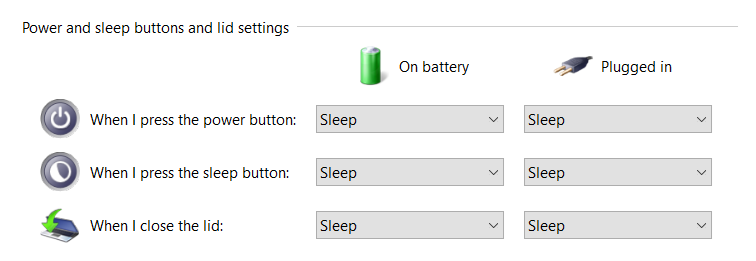
  1. To modify power settings while the laptop is plugged in or on battery power, modify the below options

Note:

Selecting higher times may result in shorter battery life

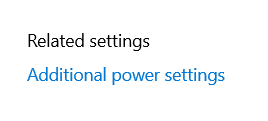
  1. For additional power settings, such as the laptop lid and power button settings, click Additional power settings

Note

Depending on window size, this option may be located towards the bottom or on the right side of the screen.

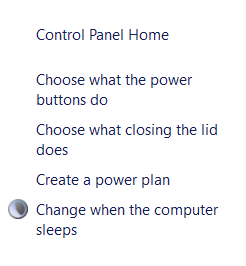
  1. Select either “Choose what the power buttons door “Choose what closing the lid does
  1. The options below will allow modifying the effects of pressing the power button and closing the lid

Note

Setting DO NOTHING when closing the lid can lead to drastically less battery life as well as overheating when the laptop is placed inside a bag or briefcase.

close

Restarting A Computer

Rebooting a device is highly encouraged as it will help keep the system running at peak performance. The benefits of a weekly reboot include:

  • Mitigate vulnerabilities to cyber-attacks by applying critical updates
  • Prevent performance degradation
  • Prevent application memory faults
  • Effectively apply system policies

To restart a device, follow the instruction below.

Tip

Make sure any open application is saved and closed before a restart is performed. This includes applications like Outlook, Word, Excel and any other applications that may be opend.

Instructions for Windows
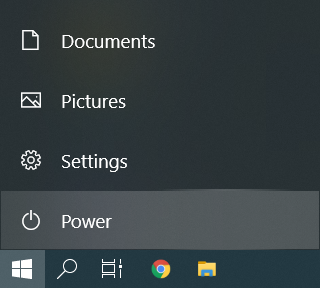
  1. Click the Start bottom on the bottom left hand side of the task bar
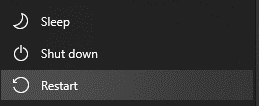
  1. Click the “Powerbutton
  1. Click “Restart

Note

Clicking “Shutdown” will not always properly apply updates or produce the desired effect. Clicking “restart” is the recomended option.

close
Instructions for macOS
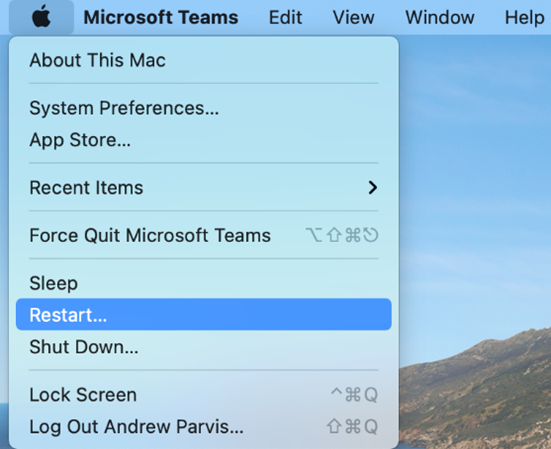
  1. Click the “Apple” at the top left-hand side of your screen
  1. Click “Restart
close
Last Modified:

Connecting a Non-PC Device to Wi-Fi

Resources for:
icon Close

This article is intended for students, staff, and faculty who wish to connect their non-PC, IoT, gaming, or streaming devices to the FDU-Wireless network. Devices that require registration include gaming consoles (such as Xbox, PlayStation, Switch) and streaming devices (like Amazon Fire Stick, Apple TV, and Roku).

Note

FDU-Wireless is only for non-PC, IoT, gaming, or streaming devices that do not support WPA2 Enterprise authentication or features a web browser.

Registering a Non-PC Device for use on FDU-Wireless Network

Use the link and directions below to register and manage wireless network access for your non-PC devices.

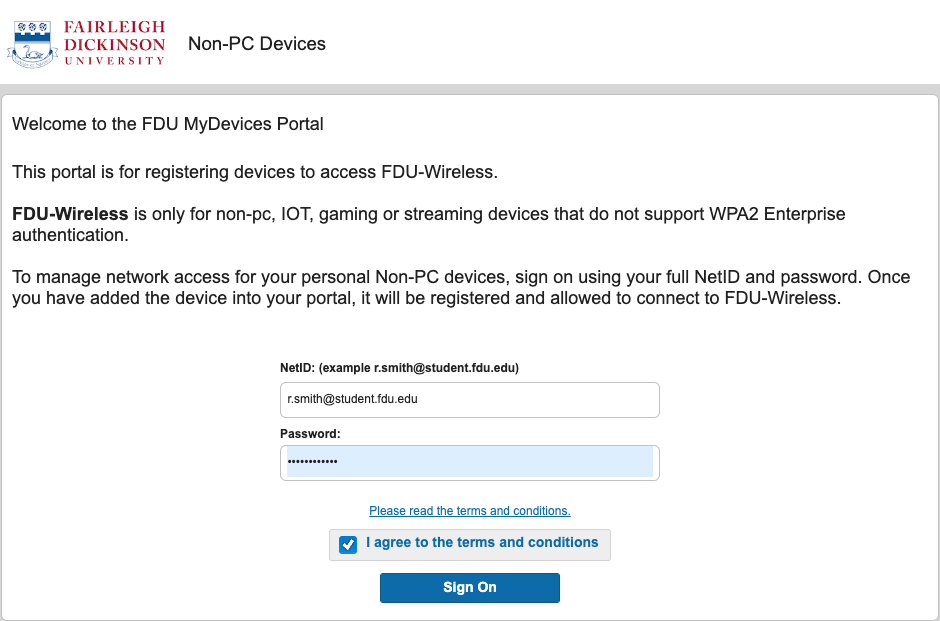
  1. Sign in into FDU MyDevices portal using the link below using your FDU NetID. Make sure to check “I agree to the terms and conditions” button before clicking “Sign On

FDU MyDevices Portal

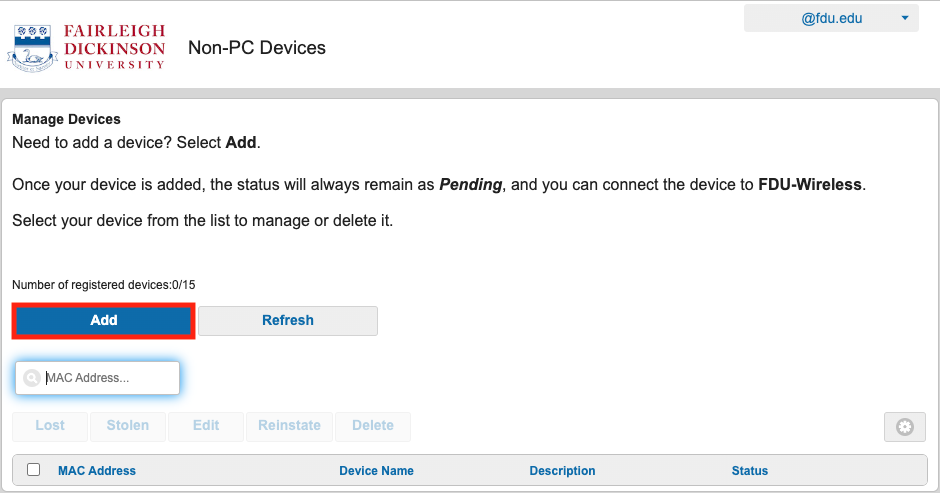
  1. Select “Add” to begin registering a device
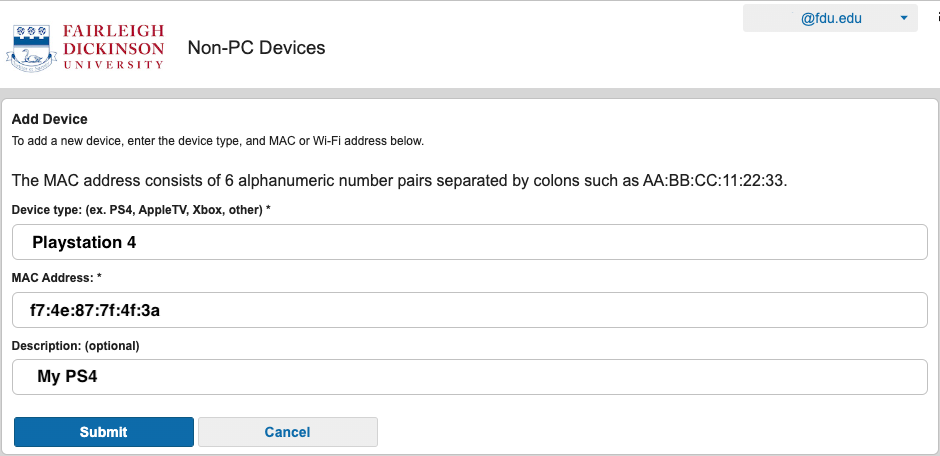
  1. Enter your device type and your device’s MAC Address into the corresponding text boxes. An optional description may be entered for your device as well. Your device’s MAC Address must be entered to register the device and continue. Refer to your devices manufacture for instructions on how to obtain the devices MAC Address. When finished, select “Submit

Tip

Some devices have their MAC Address labeled alongside it’s Serial number.

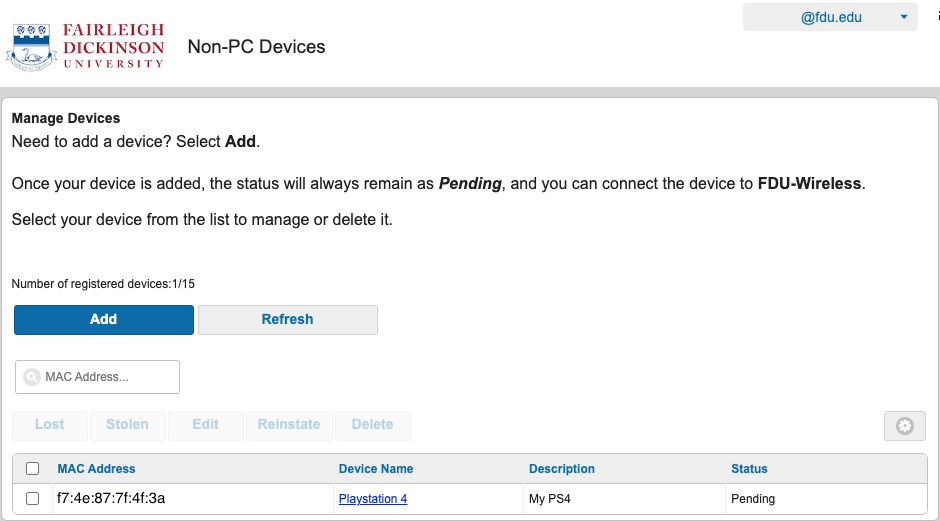
Your device should now be listed on MyDevices Portal and allowed to connect to the FDU-Wireless network. It may be necessary to select the FDU-Wireless network on your device or restart your device before successfully connecting to the wireless network

Note

Once your device is added, the status will always remain as Pending. However you will be able to connect the device to FDU-Wireless regardless of this status.

Last Modified:

Connecting to FDU-Guest Wi-Fi

Resources for:
icon Close

Visitors can get online in just three quick steps using a browser-based portal with a single click to accept the guest policy on New Jersey Campuses.

The FDU-Guest network provides fast, on-campus public internet access for users who do not require access to internal FDU resources.

How to Connect to FDU-Guest WiFi

  1. Navigate to your devices WiFi settings and select the SSID Network: “FDU-Guest”
  2. A Captive Portal will open automatically

Note

If your web browser is already open, it will be redirected automatically to the Captive Portal.

  1. On the Captive Portal page, review and accept the User Acceptable Policy to complete your connection

Once the policy is accepted, your device will be connected to the FDU-Guest network.

Network Access Limitations

Note

The FDU-Guest network provides public internet access only. It does not allow access to FDU internal systems, file servers, or other restricted university resources.

For access to FDU network resources, use our secure connection methods or contact SAMI Support for assistance.

Last Modified:

Copyright Enforcement Policy

Resources for:
icon Close

Fairleigh Dickinson University vigorously enforces United States copyright law. When utilizing the FDU Local Area Network or FDU provided Internet Access, you are required to adhere to all existing US copyright laws.

To view the full statement of law, please visit:

Failure to comply with this document can result in FDU disciplinary action as well as civil and criminal penalties.

Last Modified:

Cost Associated with Production and Post Production

Resources for:
icon Close

Production Services

Multimedia Services operates as a cost recovery center, ensuring our pricing remains competitive and significantly lower than external video production studios, without compromising on production value.

Our pricing structure is straightforward: video production services are offered at a flat rate of $150.00 per hour, making high-quality production accessible and affordable.

Post Production

When it comes to post-production, our rates are equally transparent, set at a flat rate of $50.00 per hour. The total time required for editing a project can vary, but on average, it ranges between 20 to 30 hours, depending on the complexity of the project, its duration, and the number of revisions needed during the preview stages.

ADA Captioning

In line with ensuring all online distributed videos are ADA compliant, our services include closed captioning and transcription. While platforms like YouTube automatically generate captions, they might not always be perfectly accurate. For videos requiring 100% accuracy in transcription, or for content hosted on platforms other than YouTube, we offer professional transcription services at an additional cost to meet all accessibility standards.

Last Modified:

CrashPlan Backup Email Alert

Resources for:
icon Close

Backup Alert Email Notifications

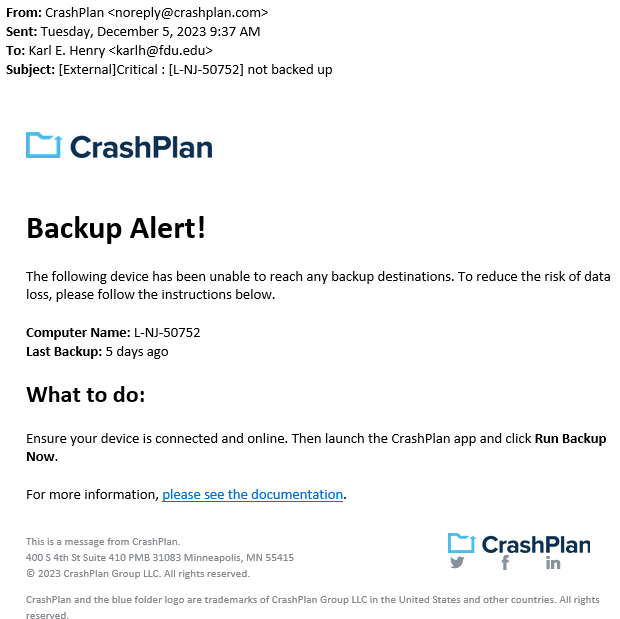
CrashPlan Backup will send users an email alert notifying them of any incomplete backups of their devices.

  • The CrashPlan Backup email alert will be sent from “CrashPlan <noreply@crashplan.com>
  • The Subject line of the email will be labeled with: “[External]Critical: [Name of Device] not backed up

Backup Alert

You will receive an alert when your computer hasn’t backed up to CrashPlan for 5 calendar days. The email will look like the example below:

CrashPlan Backup Alert Email Notification

What to do if you get a backup alert

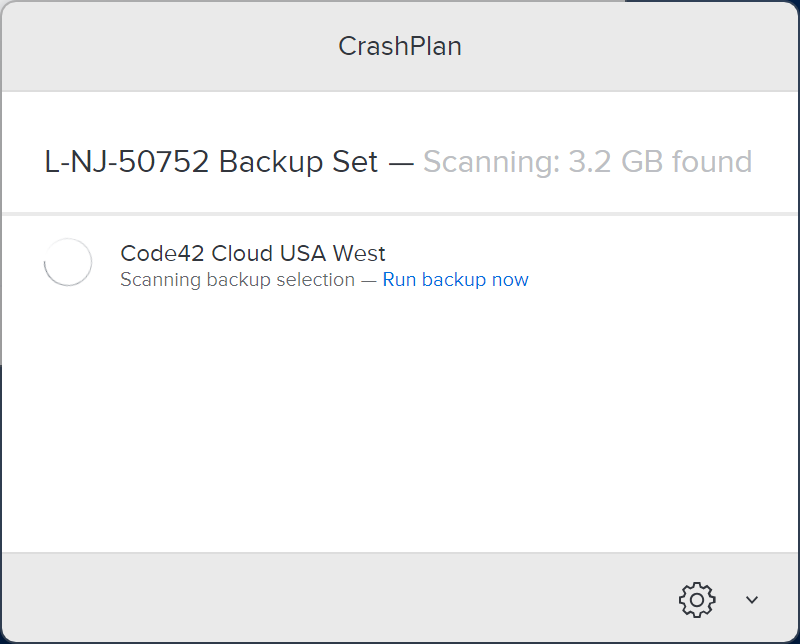
After receiving a CrashPlan Backup alert email, you should locate the device the email specifies in need of backup. The CrashPlan Backup device name will be listed in the Subject: line and Computer Name: line of the CrashPlan backup alert email.

For Windows Devices

To locate the name of a CrashPlan Backup device:

  1. Click the CrashPlan Backup icon in the Windows System Tray, also referred to as the notification area.

CrashPlan Backup icon

  1. Click “Run Backup now

Tip

The Windows System Tray or notification area is usually located on the bottom right of the Windows taskbar, next to the displayed digital clock.

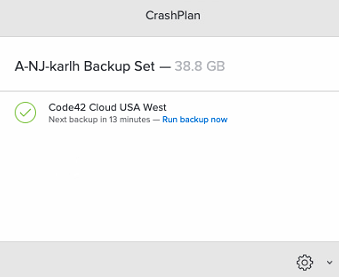
Ensure the CrashPlan backup application displays the same name as the CrashPlan Backup alert email you received.

close
For macOS Devices

After locating the correct specified device stated in the CrashPlan backup alert email, force a backup of the device by performing the following:

  1. Click the “CrashPlan Backup” System Tray or macOS menu bar Icon

CrashPlan Backup Icon

  1. Click “Run Backup now

Note

The backup may take some time to complete. This depends on the length of time since CrashPlan Backup’s last completed backup and the amount of new data that needs to be backed up.

close
Last Modified:

DUO FAQ’s

Resources for:
icon Close

Two-factor Authentication

Two-factor authentication also referred to as multi-factor authentication, provides an additional layer of security when logging in to a website. Two-factor authentication is becoming the standard in cybersecurity. Google, Apple, and other services all have their two-factor authentication methods. In short, passwords are no longer sufficient in protecting our sensitive data; we’ve got to add another layer of security to our accounts.

FAQ’s for DUO Authentication

    • DUO Push – if you have the DUO Mobile App installed on your smartphone or tablet, you can receive a push notification. From the app, you can approve or deny the login attempt.
    • Passcodes via DUO Mobile App – If you have the DUO Mobile app installed, you can receive a single passcode by tapping the FDU logo in the mobile app. This code must be used immediately.
    • Passcodes via SMS (Faculty/Staff Only) – users can receive a one-time use code via text message. To get you a one-time code, click Enter Passcode, then click on the blue button “Text me new codes.”  These codes do not expire, and they are valid until used.    You do not have to have a smartphone for this option.
    • Phone Call (Faculty/Staff Only) – you can receive a phone call on your mobile phone or landline phone. The call will give instructions on approving or denying the login attempt.
  • DUO is required for all FDU Staff, Faculty, and Students.

  • If you opt-out of the DUO Mobile Application push notifications, there are a variety of passcode options to utilize as your second verification method.

    • Passcodes via DUO Mobile App – If you have the DUO Mobile app installed, you can receive a single passcode by tapping the FDU logo in the mobile app. This code must be used immediately.


    • Passcodes via SMS (Faculty/Staff Only) – users can receive a one-time use code via text message. To get you one-time code click Enter Passcode, then click on the blue button “Text me new codes.”These codes do not expire, and they are valid until used. You do not have to have a smartphone for this option.


    • Temporary Passcodes –If you do not have your device with you, you can obtain temporary passcodes by calling the SAMI Service Desk. Each of the passcodes can only be used once, and will expire in 7 days.
  • Selecting this option will allow you to bypass DUO authentication for the next 60 days. This only works if cookies are enabled, and you are logging in from the same computer and browser. You will still be prompted to verify once – with your username and password. You will not be able to access your settings on that particular browser during the 60 days. Please note that if you have tools or policies running that regularly delete or clean cookies, the remember me feature will not work. If you do need to access your settings (perhaps to add another device), just try another browser or visit the FDU Self-Service Portal. Remember me will not work if your browser is set to private browsing mode.

  • The remember me feature relies on browser cookies. For remember me to work, your Internet browser must allow cookies to be stored. Visit your browser content settings to ensure cookies are being stored. Some departments on campus do not allow cookies to be stored. If the remember me feature does not work on your browser, check with desktop support in your area.

  • If you do not have your device with you, you can obtain a batch of temporary passcodes. To obtain a temporary passcode, call the Fairleigh Dickinson University Technical Assistance Center (UTAC).  Each of the passcodes can only be used once and will expire in 7 days.

    NOTE: If you have lost your device, please report it to the SAMI Service Desk.  We want to ensure someone else does not maliciously authenticate your account with your device.

  • DUO is available to all faculty,staff, and Students. At this time, DUO is not available to FDU retirees, past employees, or alumni.

  • Yes, the passcode option on the DUO app does not require WiFi or cellular connectivity, it even works on airplane mode. To use this option, visit the DUO app on your smartphone, and tap the key icon to obtain a passcode. Enter the passcode into the DUO prompt when logging into any website that requires DUO authentication.

  • DUO Authentication is required by any application the utilizes the university Single Sign-On (SSO) service.  Examples of some websites that require DUO authentication are listed below.

    • WebAdvisior
    • WebCampus
    • Office365 (Office365.fdu.edu)
    • Blackboard
    • Zoom
  • You may have trouble receiving push requests if there are network issues between your phone and Duo’s service. Many phones have difficulty determining whether to use the Wi-Fi or cellular data channel when checking for push requests and simply turning the phone to airplane mode and back to normal operating mode again often resolves these types of issues, if there is a reliable internet connection available. Similarly, the issue may be resolved by turning off the Wi-Fi connection on your device and using the cellular data connection.

    Check the time and date on your phone and make sure they are correct. If the date and time on your phone are manually set, try changing your device’s configuration to sync date and time automatically with the network.

    iOS users can run a troubleshooting tool from within Duo Mobile version 3.32.0 or later. To run the tool:

    1. Open the Duo Mobile app on your iOS device and tap the Edit button in the top left of the accounts list screen, then tap the name of the account for you aren’t receiving push requests.
    2. Next, tap the Get Started button in the “Missing Notifications?” section of the “Account Details” screen.
    3. Duo Mobile performs the test. If any step fails, you’ll receive further troubleshooting suggestions. After taking the suggested actions, press “Run test again” to retry.

    The steps that Push Troubleshooting performs automatically are as follows:

    • Check device settings.
    • Check internet connectivity.
    • Check that the device can contact Duo’s cloud service.
    • Attempts to send a test Duo Push notification.

    Should none of these actions help, see the Duo Knowledge Base for additional iOS and Android troubleshooting steps.

    If you can’t get Duo Push working on your own, you can log in with a passcode generated by the Duo Mobile app and send a new activation link to your phone.

    If you’ve tried the suggestions here but can’t get Duo Push working or reactivate your device yourself, please contact the SAMI Service Desk. 

  • Press the red “X to deny access to your account, then promptly change your FDU NetID password.

  • Yes! Visit the app store on your smartphone to download DUO Mobile.

    DUO for iOS >

    DUO for Android >

    NOTE: Google Play Services are required to receive push notifications on Android. Users without Google Play Services installed will have to “fetch” by swiping down in the DUO Mobile app.

    1. If your phone number has not changed, login to FDU Self-Service Portal then choose the “Call my Phone” option.
    2. Choose your device from the list, and then click “Device Options” next to your phone.
    3. Next click the “Reactivate Duo Mobile” button (you will need to install the Duo app on your phone to proceed). Then follow the instructions to activate DUO Mobile on your new device.

    If you have a new phone number, you will first need to obtain a temporary passcode (see the ‘What are Passcodes?’ section above).

    1. Login to FDU Self-Service Portal and enter the temporary passcode.
    2. Click on “Add a new device.”
    3. Once you complete adding your new device, please delete the device you are replacing.
  • Yes, you can add devices by visiting your DUO settings. When you see the DUO prompt with the three notification options, click “Settings” at the top right.

    NOTE: If you are using the Remember Me for 60 days feature, you will need to visit FDU Self-Service Portal access your settings.)

    After you click Settings, click “Add a New Device“. You can register smartphones, cell phones, tablets, and landline phones.

  • The DUO smartphone application serves only to provide two-factor authentication. It does not access any personal information on your device, nor does it track your location. Learn more about DUO’s commitment to privacy on its website.

  •  A “bypass code” is a temporary passcode created by an administrator for a specific user to access a Duo-protected application. These are generally, used as “backup codes,” so that enrolled users who are having problems with their mobile devices (e.g., mobile service is disrupted, the device is lost or stolen, etc.) or who temporarily cannot use their enrolled devices (on a plane without mobile data services) can still access their Duo-protected systems.

    A user must have a valid Duo authentication device enrolled (like a phone or iPad) to use a bypass code to authenticate. Bypass codes are not intended as a user’s only 2FA method.

    Bypass codes expire after being used the allowed number of times, or after an administrator-defined amount of time. Once a bypass code is created, the timeout and allowed uses cannot be extended.

    If you need a Bypass code please visit SAMI Service Desk, where you can request additional information or search our extensive IT knowledge base. While SAMI Support provides the quickest and easiest access for IT support, you can always contact the SAMI Service Desk at SAMISupport.fdu.edu.

  • For additional support, please visit SAMI Service Desk.

Last Modified:

DUO TLS Support

Resources for:
icon Close

Warning Warning

After June 30, 2023, Transport Layer Security (TLS) 1.0 and 1.1 connection requests to Duo will not receive a response, resulting in blocked multi-factor authentication.

Who will be affected?

This may affect FDU community users using Windows 7, Windows 8.1, Android Devices with Android OS version 9 or lower, and Apple devices with iOS versions that don’t support TLS 1.2.

Check if you are using the supported endpoints by reading the information below:

Windows

Supported Windows operating system (OS) versions will support TLS 1.2 by default. If you are running a supported Windows OS, no action is required.

Unsupported Versions for Windows Operating Systems

Note

If your operating system was manually changed to disable TLS 1.2 for some reason, connection requests will fail. Verify your system is properly configured for TLS 1.2 with the suggested steps below.

Verifying TLS 1.2 on your Operating System

Check OS Version

  • Open the Windows Search box and type “About your PC” and click on “Open
  • Under Windows Specifications, check which edition and version of Windows your device is running

Enabling TLS 1.2 on your Operating System

If your operating system was manually changed to disable TLS 1.2 for some reason, you can verify or configure your system for TLS 1.2.

Before making any changes, create a backup of the registry:

  1. In the Windows Registry Editor, locate and click the “Protocols registry key” or “subkey
    that needs to be backed up
  2. Click “File”, then “Export”
  3. In the Export Registry File dialog box, select the filename and location of where to save the backup
  4. Click “Save”

After creating a backup of the registry, follow the steps below to enable TLS 1.2 on your system:

  1. Click the Start menu, type “regedit” and press the Enter key. The Registry Editor window should be opened.
  2. Navigate to follow the registry path: HKEY_LOCAL_MACHINE\SYSTEM\CurrentControlSet\Control\SecurityProviders\SCHANNEL\Protocols
  3. Check if the subkey of TLS v1.2 is enabled for both the server and the client. Each protocol’s state is controlled by two keys: Enabled and DisabledByDefault
  4. Make sure the Enabled value is 1 and the DisabledByDefault value is 0 or missing, the protocol is enabled.
  5. If the Enabled value is 1 but the DisabledByDefault value is 1, the protocol is disabled by default – it will not be used unless another host explicitly requests it during negotiation.
  6. If the Enabled value is 0, the protocol is disabled
  7. Restart the system to ensure the new settings take effect
close

DUO Mobile

Supported Duo Mobile applications running on supported OS versions will support TLS 1.2+ by default. If you are running a supported Duo Mobile application on a supported OS, no action is required.

  • Supported Android OS versions: Android 10.0 and greater
  • Supported iOS versions: iOS 14.0 and greater

Note

Using a mobile device with unsupported versions can still receive DUO push or generate one-time passcode as before, but it will prevent you from logging in to any systems that are accessed through our FDU Single Sign On Login Page.

Web Browsers

Common web browsers like Google Chrome, Microsoft Edge, Mozilla Firefox, Opera, etc. with their latest version are supporting TLS 1.2.

Note

If your browser was manually changed to disable TLS 1.2 for some reason, connection requests will fail. Please verify your browser is properly configured for TLS 1.2 with the suggested steps below.

Check TLS Support on a Web Browser

Chrome and Microsoft Edge

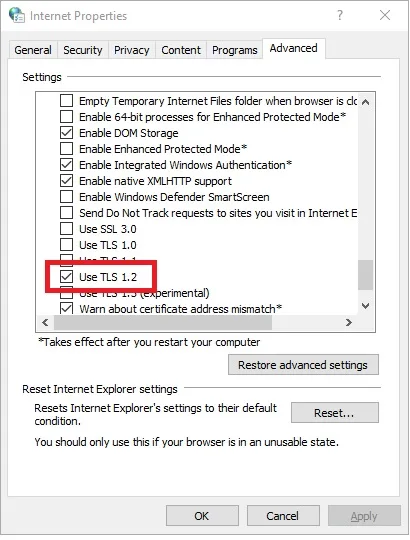
  1. In the Windows menu search box, type “Internet Options”
  2. In the Internet Properties window, on the Advanced tab, scroll down to the Security section
  3. Make sure the “User TLS 1.2” checkbox is checked
  1. Click “OK” and restart the browser

Mozilla Firefox

  1. Open the Mozilla Firefox Browser
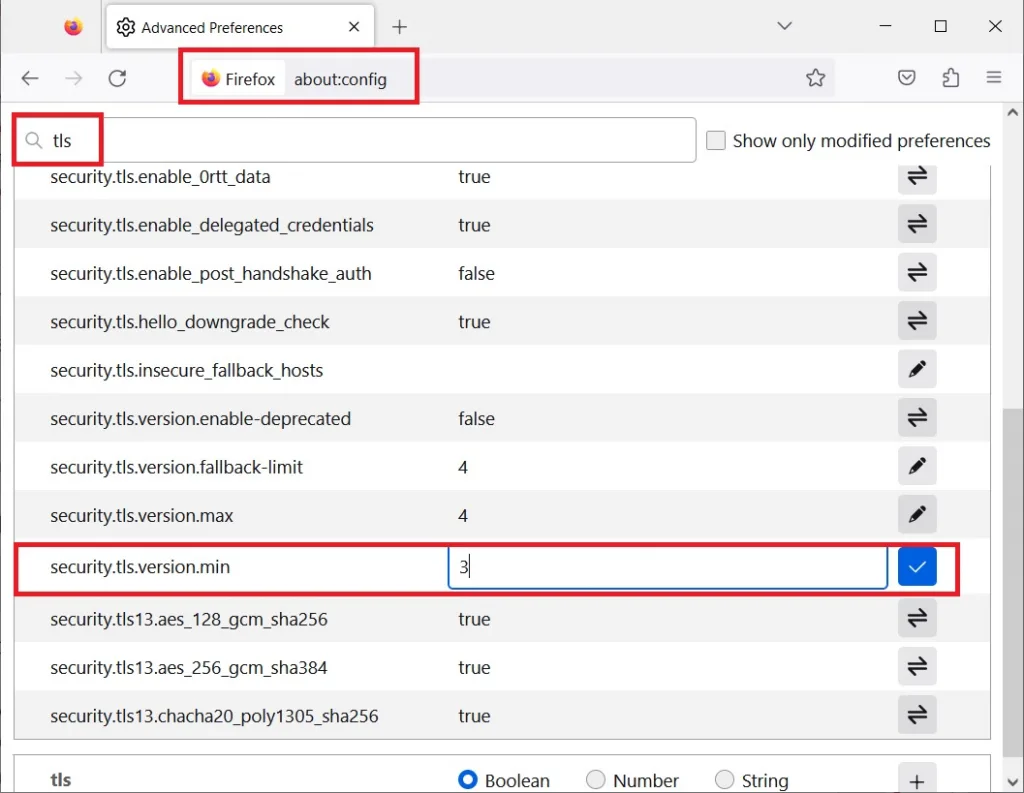
  2. In the address bar, type “about:config” and press “Enter
  3. In the Search Field type “tls”. Find and double-click the entry for “security.tls. version. min”
  4. Make sure the integer value is 3 to force a minimum protocol of TLS 1.2
  1. Click “OK” and restart the browser
close

We understand that upgrading your device is not always an option. In these instances, you can still use Duo Passcodes to perform multi-factor authentication.

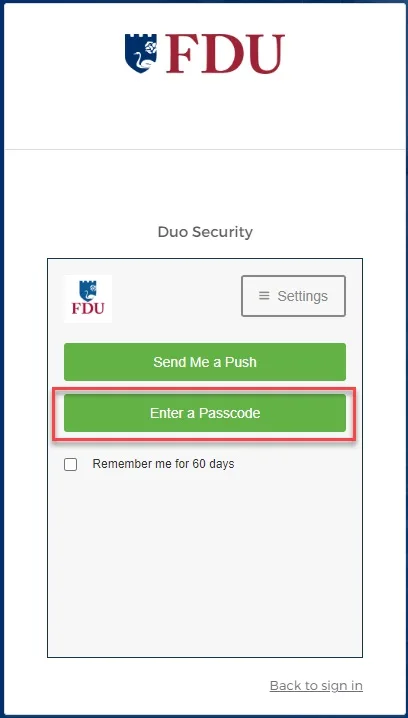
  1. To use this method, select “Enter a passcode” upon receiving your browser’s Duo security prompt
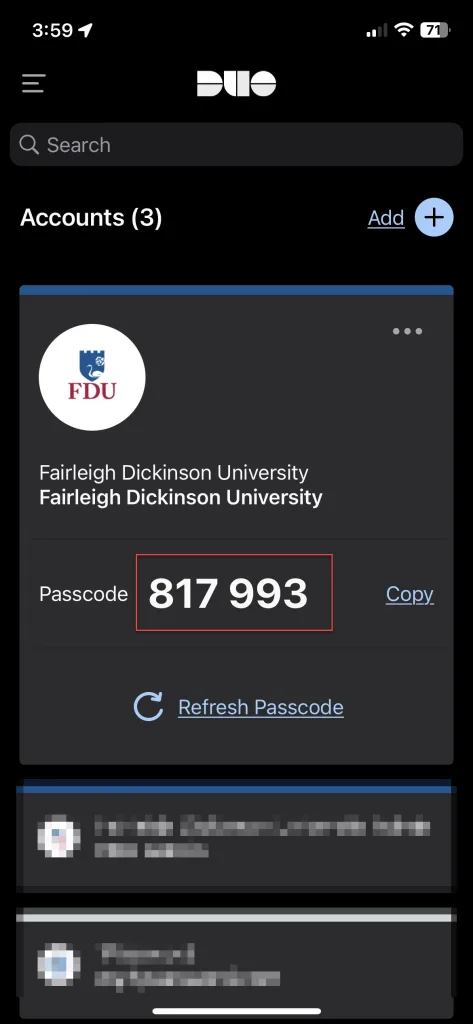
  1. Next, open the Duo app and click “Show”. This will provide a six-digit passcode which you can enter into the browser prompt
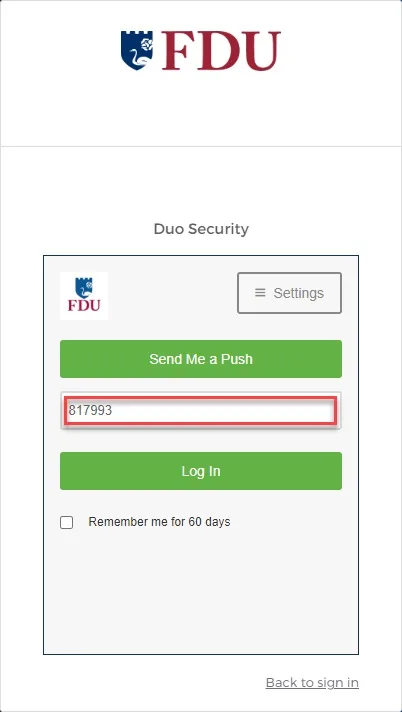
  1. Enter the six-digit passcode from the DUO app and click “Log in”
Last Modified: