Tech Alerts

FDU Tech Alerts serve as crucial announcements, offering students, staff, and faculty complete transparency about the impact of technical and security issues, while also providing updates on resolution timelines and methods.

Tech Alerts Header
Search Tech Alerts

Retiring the NWN Self-Care Portal

Posted:
February 24, 2026
icon Close

As of this morning, OIRT has officially retired a legacy Unified Communications tool called the NWN Self-Service Portal. Before the implementation of Webex Calling, this portal was the primary method for adding and removing call forwarding on individual phone lines.

Going forward, call forwarding will be enabled and disabled exclusively through the Webex Application. To set up call forwarding, open Webex and follow these steps:

  • Click Call Settings
  • Open Call Preferences
  • Select the line you want to forward
  • Select Add Number, then enter the destination phone number:
    • For on-campus numbers, enter the 4-digit extension
    • For off-campus numbers, enter 31 followed by the 10-digit number

Note

You can also send calls directly to voicemail by selecting Voicemail or remove call forwarding by selecting Do Not Forward Calls

  • Click Save

SAMI Support

If you have any questions or concerns, please visit SAMI Support, where you can request additional information or search our extensive IT knowledge base. While SAMI Support provides the quickest and easiest access for IT support, you can always contact the SAMI Support Desk by phone (973)-443-8822 or email samisupport@fdu.edu.

Last Modified: icon icon Copy Link

FredGPT Scheduled Maintenance and Feature Updates

Posted:
February 16, 2026
icon Close

This Wednesday evening, starting at approximately 6:00 PM ET, FredGPT will be offline for a brief period to implement server updates and new features.

After the update, you’ll notice the following enhancements:

Streamlined User Interface

The design has been simplified for easier navigation and a more intuitive experience.

Sessions

Current and prior chats are now called “Sessions.”

Explore Agents

All published Agents (previously called Assistants) will now be listed in the “Explore Agents” section for more organized discovery.

Projects

Organize your files and sessions in one place with the new “Projects” feature. This allows you to:

  • Keep all related files and sessions in a single location
  • Access previously uploaded documents
  • Create custom instructions for each project to tailor responses to your specific needs, such as tone, focus, or format

Note

Projects are not currently shareable with others directly from FredGPT.

Memories

In your settings, you can configure Memories to guide future conversations. For example, you can instruct FredGPT to use a specific tone or format and avoid using certain features, such as dashes in responses.

These updates, along with upcoming enhancements, are designed to improve your overall experience with FredGPT.

SAMI Support

If you have any questions or concerns, please visit SAMI Support, where you can request additional information or search our extensive IT knowledge base. While SAMI Support provides the quickest and easiest access for IT support, you can always contact the SAMI Support Desk by phone (973)-443-8822 or email samisupport@fdu.edu.

Last Modified: icon icon Copy Link

SAMI Service Desk Tips

Posted:
February 11, 2026
icon Close

The launch of our new SAMI Service Desk introduced significant changes to how the University community interacts with IT support, including a greater emphasis on the web-based SAMI Service Desk portal. The portal offers the best accuracy and fastest response times; however, we recognize that it may not be ideal for every situation. Support is also available by email at samisupport@fdu.edu or by phone at (973) 443-8822.

When contacting the Service Desk by phone, you will initially connect with our virtual agent. The following tips will help you navigate the interaction:

  • Have your FDU ID number ready. This 7-digit number is located on your FDU ID card and is the only way we can identify you when opening a ticket.
  • If you cannot locate your FDU ID number, the virtual agent can still create a support ticket on your behalf, but you will be listed as an “unidentified caller.” You may be asked to provide your name, phone number, and FDU email address so we can respond promptly.
  • In most cases, contacting the Service Desk results in a ticket number being automatically sent to your FDU email address. This does not occur when using phone support without your FDU ID number, although a ticket is still created. In these cases, wait for our Service Desk team to return your call. Additional contact before receiving your ticket number may result in duplicate tickets.
  • Be prepared to provide a brief description of your issue. Think of it as an email subject line. Use a few clear words such as “Unable to connect to Wi-Fi” or “Cannot access email.” Providing a long explanation may result in an unclear or incomplete ticket subject.
  • You may need to respond more than once. The virtual agent will attempt to resolve your issue multiple times before transferring you to a live agent. Listen carefully to the prompts as the virtual agent works to assist you.
  • If the virtual agent cannot resolve your issue and you are calling between 8 AM and 8 PM Eastern Time on a business day, you will be transferred to a live agent. Calls made outside of business hours will be placed in a queue for follow-up the next business morning.
  • There is no bypass option for the virtual agent. If the virtual agent cannot resolve your issue, you will be transferred to a member of the Service Desk team.
  • In all cases, a SAMI support ticket is created for your inquiry. If the virtual agent resolves the issue, the ticket serves as documentation of the resolution. If additional assistance is required, the ticket is routed to our team.

SAMI Support

If you have any questions or concerns, please visit SAMI Support, where you can request additional information or search our extensive IT knowledge base. While SAMI Support provides the quickest and easiest access for IT support, you can always contact the SAMI Support Desk by phone (973)-443-8822 or email samisupport@fdu.edu.

Last Modified: icon icon Copy Link

International Travel Considerations for FDU Mobile Device Users

Posted:
January 23, 2026
icon Close

When traveling internationally, there are a few important steps that faculty and staff members must take to ensure FDU does not incur unnecessary costs related to their university-issued cell phones.

The most important action is to notify our Voice Services team about your travel plans. This should be done by submitting the Mobile Device Request & Feature Change Form at least one week prior to traveling. Once Voice Services receives the form, they will ensure that the appropriate international feature—formerly called an international plan—is added to your device. The form also creates a line of communication with Voice Services so they can inform you of the applicable rates, voice and text limits, and any unique circumstances associated with your international travel.

When traveling internationally, turn off “cellular data roaming” on university devices that do not have an international feature enabled. Consider leaving unneeded devices, such as iPads and Mi-Fi units, at home. Unless your device is completely powered off or data roaming is disabled, it will still generate data traffic in the background.

International phone costs can add up quickly, so your proactive steps while traveling are appreciated.

Voice Services

To contact our Voice Services team with additional questions, submit a support request through SAMI Support. While SAMI Support provides the quickest and easiest access for IT support, you can also contact the SAMI Service Desk by phone at (973) 443-8822 or email at samisupport@fdu.edu.

Last Modified: icon icon Copy Link

Class and Event Technology Support

Posted:
January 15, 2026
icon Close

During the Fall semester, OIRT Computing Services noticed a series of easily preventable technology issues in classrooms and event spaces. If you conduct classes or host events using Zoom carts, projectors, screens, or any other FDU-provided technology, we recommend reviewing our new article:

This article is a quick read filled with helpful guidance to ensure you’re both a considerate host to your students or participants and a respectful user of shared spaces for those who come after you.

Last Modified: icon icon Copy Link

Softdocs Login Issue Resolved

Posted:
January 14, 2026
icon Close

Softdocs has corrected the issue and access to Etrieve is now available.

SAMI Support

If you have any questions or concerns, please visit SAMI Support, where you can request additional information or search our extensive IT knowledge base. While SAMI Support provides the quickest and easiest access for IT support, you can always contact the SAMI Support Desk by phone (973)-443-8822 or email samisupport@fdu.edu.

Last Modified: icon icon Copy Link

Softdocs Login Issue

Posted:
January 14, 2026
icon Close

Softdocs is experiencing a major outage and is currently unable to all users.

I will send an update as soon as this has been resolved.

SAMI Support

If you have any questions or concerns, please visit SAMI Support, where you can request additional information or search our extensive IT knowledge base. While SAMI Support provides the quickest and easiest access for IT support, you can always contact the SAMI Support Desk by phone (973)-443-8822 or email samisupport@fdu.edu.

Last Modified: icon icon Copy Link

Network Maintenance

Posted:
January 12, 2026
icon Close

Starting on Sunday, January 18 at 11:00 PM Eastern and continuing through 2:00 AM the following morning, FDU will be performing network maintenance. During this maintenance window, on-campus users may experience brief, sporadic internet disruptions, and off-campus users may encounter momentary interruptions when using the FDU VPN.

SAMI Support

If you experience connectivity issues after the maintenance is complete, create a support request through SAMI Support. While SAMI Support offers the quickest and easiest access to IT assistance, you can also contact UTAC by phone at (973) 443-8822 or email at samisupport@fdu.edu.

Last Modified: icon icon Copy Link

New Softdocs Central Experience

Posted:
December 17, 2025
icon Close

SoftDocs Etrieve Central will have a new look starting January 1, 2026. The new experience will fully replace the legacy version and introduce a modernized interface that offers a refreshed design, improved navigation, and a more intuitive user experience aimed at helping users work faster and more efficiently.

You can explore the new experience now by clicking the “Try New Central” button in the top right-hand corner of Etrieve Central. You can also view this three-minute SAMI Short tutorial video.

If you experience any issues after the upgrade, create a support request through SAMI Support.

Last Modified: icon icon Copy Link

Network Maintenance

Posted:
December 16, 2025
icon Close

Starting on Friday, December 19 at 11:00 PM Eastern and continuing through 2:00 AM the following morning, FDU will be performing network maintenance.

During this maintenance window, on-campus users may experience brief, sporadic internet disruptions, and off-campus users may experience momentary disruptions to the FDU VPN.

SAMI Support Desk

If you experience connectivity issues after the maintenance is complete, submit a support request via SAMI Support. While SAMI Support is the fastest way to reach IT, you can also contact UTAC by phone at (973) 443-8822 or email at SamiSupport@fdu.edu.

Last Modified: icon icon Copy Link

SAMI Service Desk Launches Today

Posted:
December 4, 2025
icon Close

The launch day has arrived for our new in-house IT support team, the SAMI Service Desk. While we have kept the university informed of this change over the past few weeks, now is an excellent time to focus on a few key elements of this transition and what it means to our community.

Hours

The SAMI Service Desk is operational between 8 AM and 8 PM, Monday through Friday. You can create a support request at any time, including after hours, on weekends, and on holidays. Your request will enter our queue and our team will respond promptly on the next business day.

To optimize your support experience, it is helpful to understand the four ways to open a support request and when to use each method.

SAMI Support Portal

This is our primary and most feature-rich support method, offering access to the knowledge base and your support history.

SAMI Support

Email Support

Emailing SAMISupport@fdu.edu is a strong alternative when using the portal is not practical. Your request will be immediately added to the queue.

Public Form

As noted in yesterday’s alert, this form supports users who cannot validate their identity (ID issues, locked accounts, etc.) but still need to open a request online.

Phone Support

When calling, you will be greeted by our new virtual agent, which will collect basic information including your seven-digit FDU ID number, located on the back of your Fairleigh 1Card. The virtual agent will provide level-one assistance and, if needed, route your call to a team member during business hours. While helpful for those unable to use online methods, this should not be your first-choice option.

When a ticket is closed, you will be given the opportunity to provide feedback. In this moment, that feedback is essential. We will closely monitor community input and adjust our processes over the coming weeks and months.

We believe deeply in the talented team of staff members and FDU students we have assembled. As with any deployment of this scale, some growing pains are expected. Bear with us as our Service Desk team gains experience and as we improve our processes.

(973)-443-8822

Last Modified: icon icon Copy Link

Using the SAMI Support Public Form

Posted:
December 3, 2025
icon Close

The new SAMI Service Desk, which will be fully operational as of December 4th, will be structured to prioritize requests submitted electronically. This includes tickets entered via our SAMI Support Portal and emails sent to samisupport@fdu.edu.

In addition to these options, there is an online request form, called the Public Form, which is intended to be used when the SAMI Support Portal is unavailable due to any of the following reasons:

  • Lack of a valid University-issued NetID
  • Inability to authenticate through DUO
  • No DUO account
  • Vendors without a University-issued NetID
  • Newly admitted students
  • Newly hired employees and adjuncts
  • Locked FDU account
  • NetID password resets (after attempting to go through identity.fdu.edu)

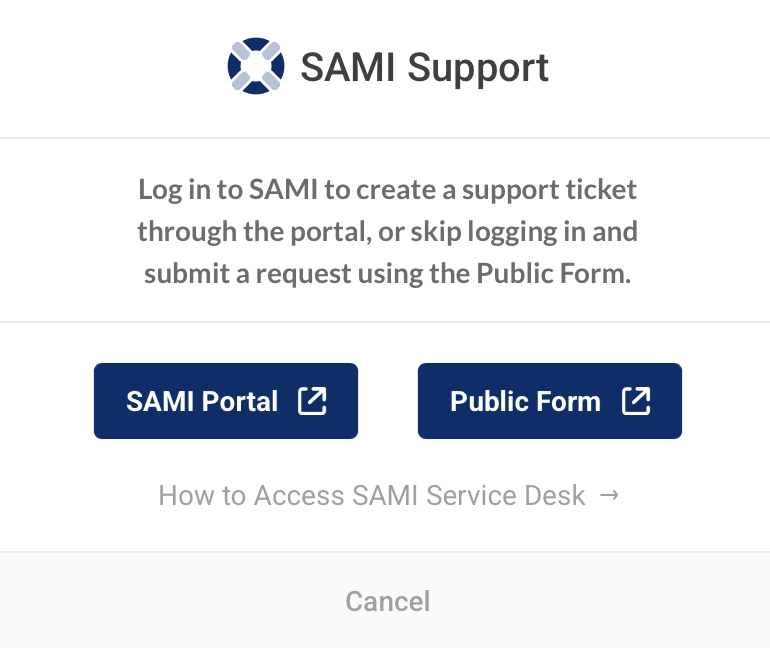
You can access the form by clicking the blue support icon at the top of of this website and then selecting “Public Form”

FDU IT Homepage
SAMI Support Popup Dialog Box

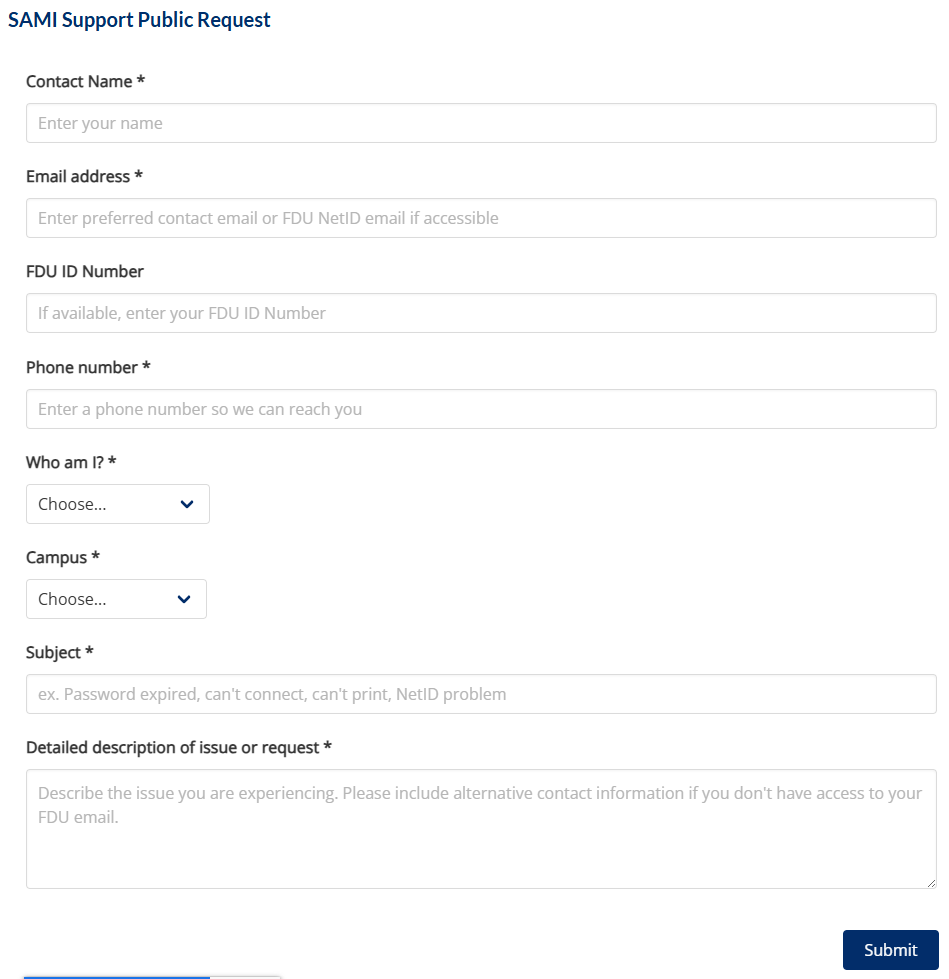
Once you reach the form, complete the requested fields and click “Submit”

Sami Support Public Request Form

While SAMISupport.fdu.edu remains the best option for most use cases, the Public Form is a quick, easy, and invaluable resource when needed.

Phone support via (973)-443-8822 will still be available as a legacy option. Calls will be answered by a virtual agent, who will attempt to assist you before transferring you to the Service Desk.

This update highlights the electronic-first approach of the new SAMI Service Desk.

Last Modified: icon icon Copy Link

SAMI Service Desk Launch Update

Posted:
December 1, 2025
icon Close

As previously announced, December 4th will mark the official launch of our new IT support team, the SAMI Service Desk. This journey began as a trial at the start of the fall semester. As our launch date approaches, here are some additional considerations:

In our new Service Desk, most of our agents are dedicated to handling issues submitted through the SAMI Support Self-Service portal and email. This differs from our previous UTAC Helpdesk model. While phone support will remain an option, the portal and email are now the most efficient ways to engage with the Service Desk.

If you choose to call, the virtual agent will first verify your identity by asking for your FDU ID number. This is the 7-digit number located on the back of your Fairleigh 1Card. Have that number ready when calling.

If you missed the original Tech Alerts sent on 11/17 and 11/24, you can watch the SAMI Short below, or continue reading.

The SAMI Service Desk is staffed with a full-time dedicated supervisor, two full-time agents, and seven student interns rotating shifts throughout the day. Tickets can be submitted through our self-service portal at SAMISupport.fdu.edu. If you are unable to log in to the portal, you can use our public form by clicking the blue support icon at on this website.

Submitting tickets through the portal or public form is the quickest and easiest way to get support. Since the trial began, tickets submitted this way have had an average first response time of 38 minutes.

The second quickest method is to email samisupport@fdu.edu, which replaces fdutac@fdu.edu.

If neither of these options works for you, you can call the SAMI Support Line at (973)-443-8822. Below are some changes you’ll notice when calling for support starting December 4th:

  1. The phone line will initially be answered by a Virtual Agent. Since the Virtual Agent must identify the user in the SAMI system, have your 7-digit FDU ID number ready when you call. This number is located on your FDU ID card.
  2. The Virtual Agent will then ask a series of questions to help resolve your issue.
  3. If the issue is resolved by the Virtual Agent, a closed SAMI ticket will serve as a record of the call. If it cannot be resolved, the call and an open SAMI ticket will be transferred to the Service Desk.
  4. The new Service Desk hours of operation are 8 AM to 8 PM ET, Monday through Friday. Calls received after hours, on weekends, and during holidays will be recorded by the Virtual Agent. SAMI tickets will be opened and queued for follow-up on the next business day.
  5. There will be automatic escalation to after-hours support personnel for urgent issues, such as system outages or weekend classroom incidents.

While the team’s handling of samisupport.fdu.edu and samisupport@fdu.edu requests has exceeded expectations, integrating the virtual agent and new contact center systems with our SAMI environment introduces a level of complexity. If your only option is to call, be aware that we may need to adjust some workflows in the first few weeks. Our team has made tremendous progress and is committed to making the SAMI Service Desk a significant improvement over our previous support model.

Last Modified: icon icon Copy Link

SAMI Service Desk Launch

Posted:
November 14, 2025
icon Close

December 4th will mark the official launch of our new IT support team, the SAMI Service Desk. This initiative began as a trial at the start of the fall semester. At that time, the new team began handling all SAMI self-service and public form tickets. In October, the trial expanded to include emails and introduced a new support address: samisupport@fdu.edu, replacing fdutac@fdu.edu. We are now ready to declare the trial a success and hand the new team full control over phone support. At a time when many businesses are outsourcing service centers, FDU will now have our entire support team on-site.

To learn about this change, watch for a brief four-minute SAMI short video or continue reading.

The SAMI Service Desk is staffed with a full-time dedicated supervisor, two full-time agents, and seven student interns rotating shifts throughout the day. Tickets can be submitted through our self-service portal at SAMISupport.fdu.edu. If you are unable to log in to the portal, you can access our public form by clicking the blue support icon at the top right of the FDU IT website.

Submitting tickets through the portal or public form is the quickest and most efficient way to receive support. Since the trial began, tickets submitted this way have had an average first response time of 38 minutes.

The second fastest way to get support is by emailing samisupport@fdu.edu, which now replaces fdutac@fdu.edu.

If neither method works for your situation, you can still call the SAMI support line at (973)-443-8822. Starting December 4th, you will notice the following changes when calling:

  • The phone line will be initially answered by a Virtual Agent.
  • The Virtual Agent will request your name, contact number, and FDU ID number to identify you in the SAMI ticketing system.
  • The agent will then ask a series of questions in an attempt to resolve the issue.
  • If successful, a closed SAMI ticket will serve as a record of the call.
  • If the issue cannot be resolved, the call and an open ticket will be transferred to the Service Desk.

New hours of operation for the SAMI Service Desk will be 8 AM to 8 PM ET, Monday through Friday. Calls received by the Virtual Agent outside of these hours—including weekends and holidays—will be recorded. Tickets will be opened and added to the queue for follow-up on the next business day.

Automatic escalation to after-hours support personnel will occur for critical concerns, such as system outages and weekend classroom issues.

While our handling of SAMISupport.fdu.edu and samisupport@fdu.edu has exceeded expectations, integrating the new Virtual Agent and contact center systems into the SAMI environment is complex. If your only option is to call, expect some workflow adjustments in the first few weeks. The team has made rapid progress and remains committed to making the SAMI Service Desk a major upgrade over our previous support model.

Last Modified: icon icon Copy Link

FDU Patching for Mac

Posted:
November 13, 2025
icon Close

To improve the security posture of university-issued Apple computers, OIRT is implementing a new patching workflow designed to keep non-FDU provided software on your macOS device up to date.

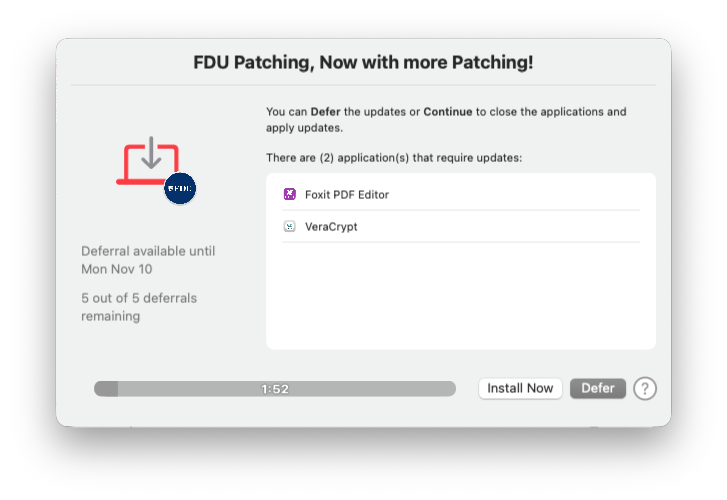
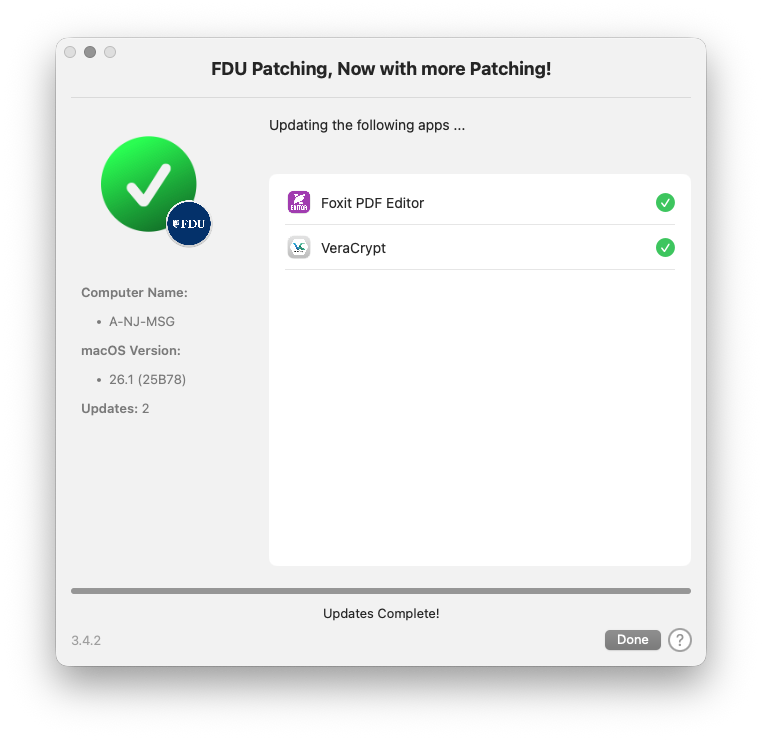
Once a month, a process will check the version of applications installed on your machine and, when needed, update them. When the process runs, you will see the following window:

You can either install the updates immediately by pressing Install Now or choose to install them later by pressing Defer.

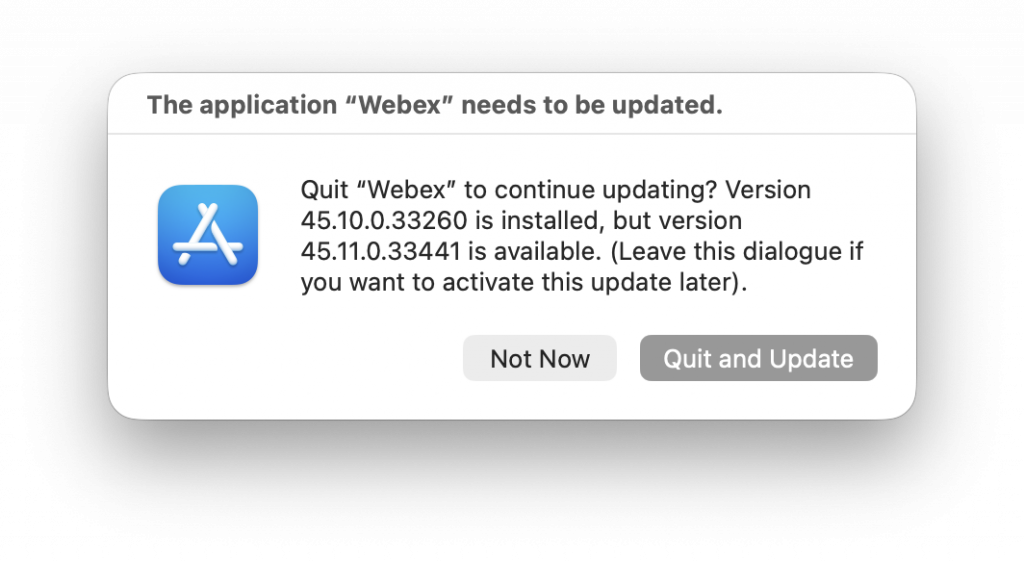
If an open application needs to be patched, you may receive a notification like the one shown below. In that case, select Quit and Update to close the app and update it, or Not Now to continue using it.

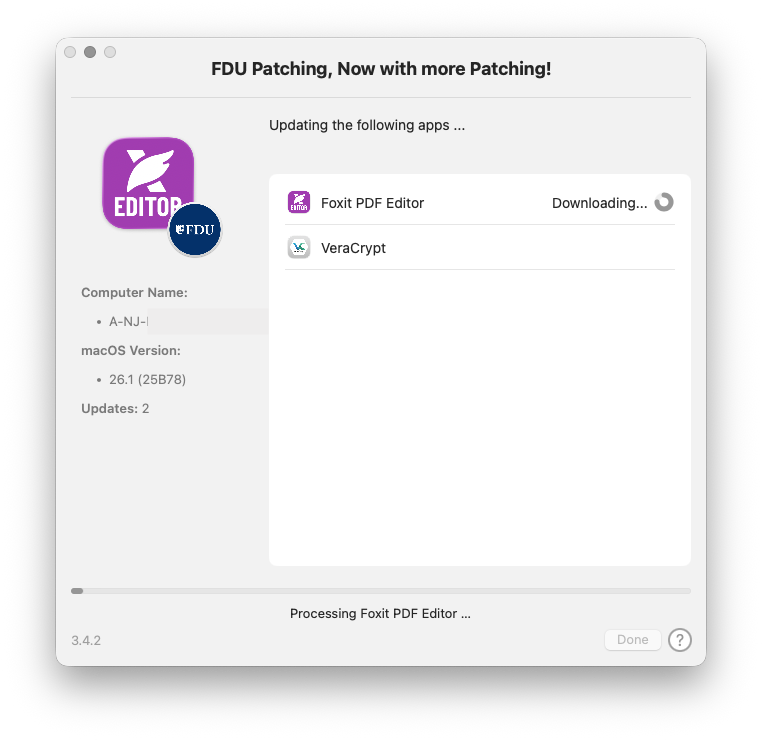
Once the patching is complete, click Done to close the window.

While the Defer option allows you to postpone updates to a more convenient time, all updates must be installed promptly. Every employee is responsible for maintaining the security of their FDU-issued devices.

For questions or concerns, visit SAMI Support to request additional information or search the IT knowledge base. Support is also available by phone at (973)-443-8822 or by email at samisupport@fdu.edu.

Last Modified: icon icon Copy Link

Transition from CR Snap and Chrome River Apps to Emburse Enterprise Mobile App

Posted:
October 10, 2025
icon Close

Emburse (Chrome River) will be sunsetting its legacy mobile apps that allow users to upload receipts and create and submit expense reports.

Users currently using CR Snap or the Chrome River App must transition to the new Emburse Enterprise Mobile App before November 30th. The new app can be downloaded from the Apple App Store or Google Play Store and allows you to log in with your NetID credentials.

For questions, email misrequests@fdu.edu.

Last Modified: icon icon Copy Link

Update: SAMI Support Team Trial

Posted:
October 8, 2025
icon Close

While FDU OIRT regularly unveils new initiatives aimed at improving the IT experience at the University, the Fall 2025 semester has been among our most ambitious. At the start of the semester, FDU OIRT announced the trial of a new support solution that uses a dedicated team of FDU technicians to provide enhanced support when requests are submitted through our SAMI Support Portal. A public form is also available to ensure that individuals unable to authenticate can receive the same level of service. In mid-September, we introduced SAMI Shorts—brief videos that help explain the technology we offer and how our community can best utilize it.

How has the trial gone?

The SAMI Service Desk has handled nearly 1,000 tickets since the beginning of the trial. Over 90% of tickets were responded to within 3 hours, and over half were resolved within 24 hours. Of the 12 tickets rated by users, ten received a 5 out of 5. Initial feedback indicates strong engagement with our SAMI Short videos as well. These are clear signs that we are heading in the right direction.

What’s next?

Starting October 14, we will expand the trial to include support requests initiated via email. While the preferred method for submitting a ticket remains the SAMI Support Portal, community members can now email support requests to samisupport@fdu.edu.

Will the old email address still work?

Yes. While FDUTAC@fdu.edu will still function for now, tickets sent to that address will be routed to the SAMI Service Desk instead of our third-party team.

What else is changing?

With the introduction of our new Student Internship Program, we now have a group of trained students supplementing our staff of dedicated FDU technicians. Once fully launched, the internship program will bring the total number of Service Desk personnel to six during peak hours.

What’s not changing?

Our third-party Technical Assistance Center, UTAC, is still available at (973)-443-8822.

Why are we doing this?

As we become increasingly reliant on technology to teach, learn, and manage the business of higher education, OIRT continues to evolve our services to be better, faster, and more accurate. The new internal Service Desk initiative directly supports this goal and aligns our support model with best practices in higher education.

Last Modified: icon icon Copy Link

Network Equipment Upgrade

Posted:
October 3, 2025
icon Close

On October 10th, between 2AM and 6AM, USAN will perform an upgrade of network equipment in the following buildings. During this maintenance, users in these buildings may experience intermittent network outages.

Florham Campus

  • Barn
  • Chaine House
  • The Cottages
  • Dreyfuss Building
  • EOF Building
  • Gatehouse
  • Library
  • Mansion
  • Monninger Center
  • Park Avenue North and South
  • PR Building
  • Rec Center
  • Rothman Center
  • Rutherford Building
  • School of Pharmacy
  • Science Building
  • Student Center
  • Twombly (Hamilton/Florence/I-Wing)
  • Villages 1–9
  • Wellness Center
  • Zen Building

Metropolitan Campus

  • 835 SUB Lane (Dean of Students)
  • Alumni Hall
  • Bancroft Hall
  • Dickinson Hall
  • Edward Williams College
  • EOF Building
  • Fitness Center
  • Giovatto Library
  • ISS Building
  • Kron Building
  • Linden 1–8
  • Muscarelle Hall
  • Northpointe Building
  • Public Safety
  • Purchasing Building
  • Residence Life
  • River House
  • Robison Hall
  • Bogota Center
  • Student Counseling and Psychological Services
  • Student Union Building
  • 131/139 Temple Avenue
  • University Court 1–10
  • University Hall
  • Williams Hall

We understand the inconvenience that network downtime can cause for our community. We schedule this work during times that minimize impact. For questions or concerns, visit SAMI Support to request additional information from UTAC or search our IT knowledge base. You can also contact UTAC by phone at (973) 443-8822 or email fdutac@fdu.edu.

Last Modified: icon icon Copy Link

Introducing the FDU-Guest Wireless Network Segment

Posted:
September 17, 2025
icon Close

FDU OIRT is excited to announce FDU-Guest, a new wireless network (SSID) for guests visiting our New Jersey campuses. FDU-Guest simplifies the guest access process while improving network security. Guests can connect without needing sponsorship from a member of the FDU community, while access to internal FDU resources remains restricted to active Faculty/Staff and Students.

With this addition, the FDU wireless network now has four distinct segments: FDU-Secure, FDU-Wireless, Eduroam, and FDU-Guest.

When to use each network segment:

  • FDU-Secure: The primary SSID for most of our community. Requires authentication, grants access to all internal services, and has priority for academic and business traffic.
  • FDU-Wireless: For non-computer devices such as gaming consoles or SmartTVs that cannot use WPA2 Enterprise authentication. These devices can be registered on the FDU MyDevices Portal.
  • Eduroam: A secure, worldwide roaming service for international research and education. Students, researchers, and staff from participating institutions can connect at FDU using their home institution’s credentials.
  • FDU-Guest: A public, non-authenticated network for University guests. Users must agree to the Acceptable Use Policy, and sessions remain active for one day. This network provides internet access only—services requiring SSO access are blocked.

Traditional Guest Wireless and Guest Group Creation forms remain available on SAMI Support for visitors who require advanced services such as on-campus printing, access to Zoom carts, or library resources.

Watch our SAMI Short video about FDU-Guest:

FDU-Guest Wireless

Full directory of SAMI Short videos:

SAMI Shorts Catalog

FDU-Guest is now available on both New Jersey campuses via the Wi-Fi SSID dropdown menu. If you are unsure which solution is best for your situation or have questions, open a SAMI Support ticket to request more information or search the IT knowledge base. You can also contact UTAC at (973)-443-8822 or email fdutac@fdu.edu.

Last Modified: icon icon Copy Link

Technology Orientation Registration

Posted:
September 4, 2025
icon Close

Computing Services invites you to a Technology Orientation covering the many applications and classroom technologies available at the University. This engaging two-hour session provides an overview of the AV technology in classrooms, the SAMI support portal, and University applications that enhance the teaching and learning experience.

The orientation will include:

  • An introduction to classroom equipment
  • Best practices for utilizing technology
  • A demonstration of the SAMI Support Portal
  • How to create a support ticket
  • How to create a lab reservation
  • How to request technology and IT support for events
  • An overview of key applications, including:
    • WebCampus/Blackboard
    • Qualtrics
    • Zoom
    • Echo360
    • Kaltura/Mediaspace
    • MyFDU Connect
    • Self-Service

Morning and afternoon sessions will be held both in-person and via Zoom:

  • Thursday, September 11 – Metropolitan Campus, Alumni Hall
  • Friday, September 12 – Florham Campus, Mansion, Hartman Lounge

With so many great tools on offer, this is a chance to discover your next favorite application.

Technology Orientation Registration Form

After completing the registration form, you will receive an email and Outlook Calendar invitation confirming your registration. We look forward to seeing you at orientation.

Last Modified: icon icon Copy Link